How to Share Your eSIM Internet with a Mobile Hotspot
Your eSIM data plan isn't just for your phone. One of the most powerful features of eSIM technology is hotspot sharing — using your phone as a portable Wi-Fi router for your laptop, tablet, or travel companion's device.
Here's everything you need to know about sharing your eSIM internet connection.
Does Your eSIM Plan Support Hotspot Sharing?
Not all eSIM plans allow hotspot sharing (tethering). Some budget carriers restrict this feature. Roaming2 eSIM plans support hotspot sharing on all plans — no restrictions, no extra fees.
Quick check: If you're using a Roaming2 eSIM, hotspot sharing is included. For other providers, check the product description under "tethering" or "hotspot."
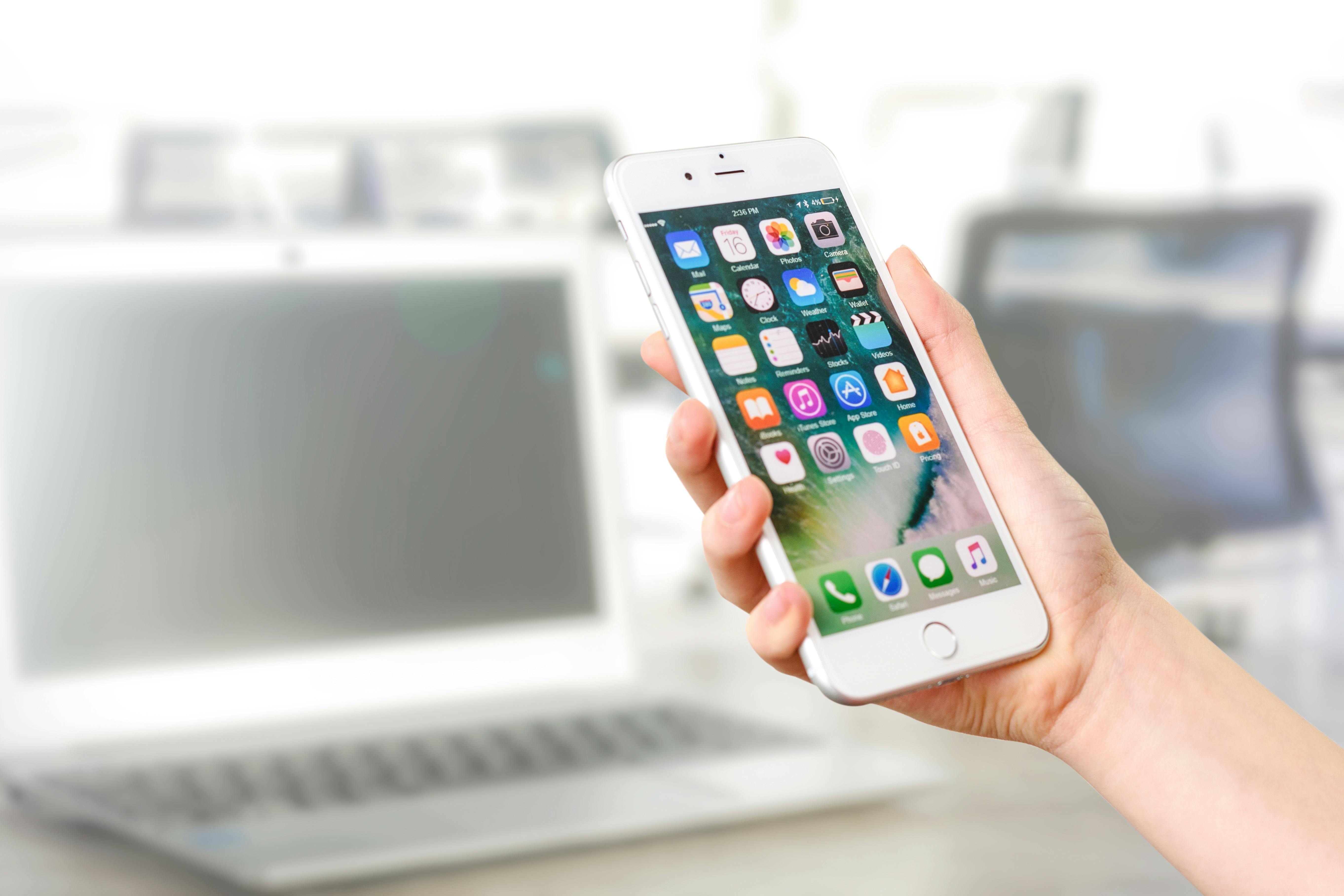
How to Enable Hotspot on iPhone
- Open Settings
- Tap Personal Hotspot
- Toggle Allow Others to Join ON
- Set a Wi-Fi password (use WPA2 for security)
Your phone will show a Wi-Fi network name. Other devices simply connect to it using the password you set.
Note: If Personal Hotspot doesn't appear, go to Settings → Cellular → your Roaming2 eSIM and make sure Data Roaming is ON.
Connecting a Laptop or Tablet
- On a Mac: Click the Wi-Fi icon in the menu bar → select your iPhone's hotspot
- On Windows: Click Wi-Fi in the taskbar → select your phone's hotspot
- On iPad/Tablet: Go to Settings → Wi-Fi → select your phone's hotspot
- On another Android: Open Wi-Fi settings → tap your hotspot network
How to Enable Hotspot on Android
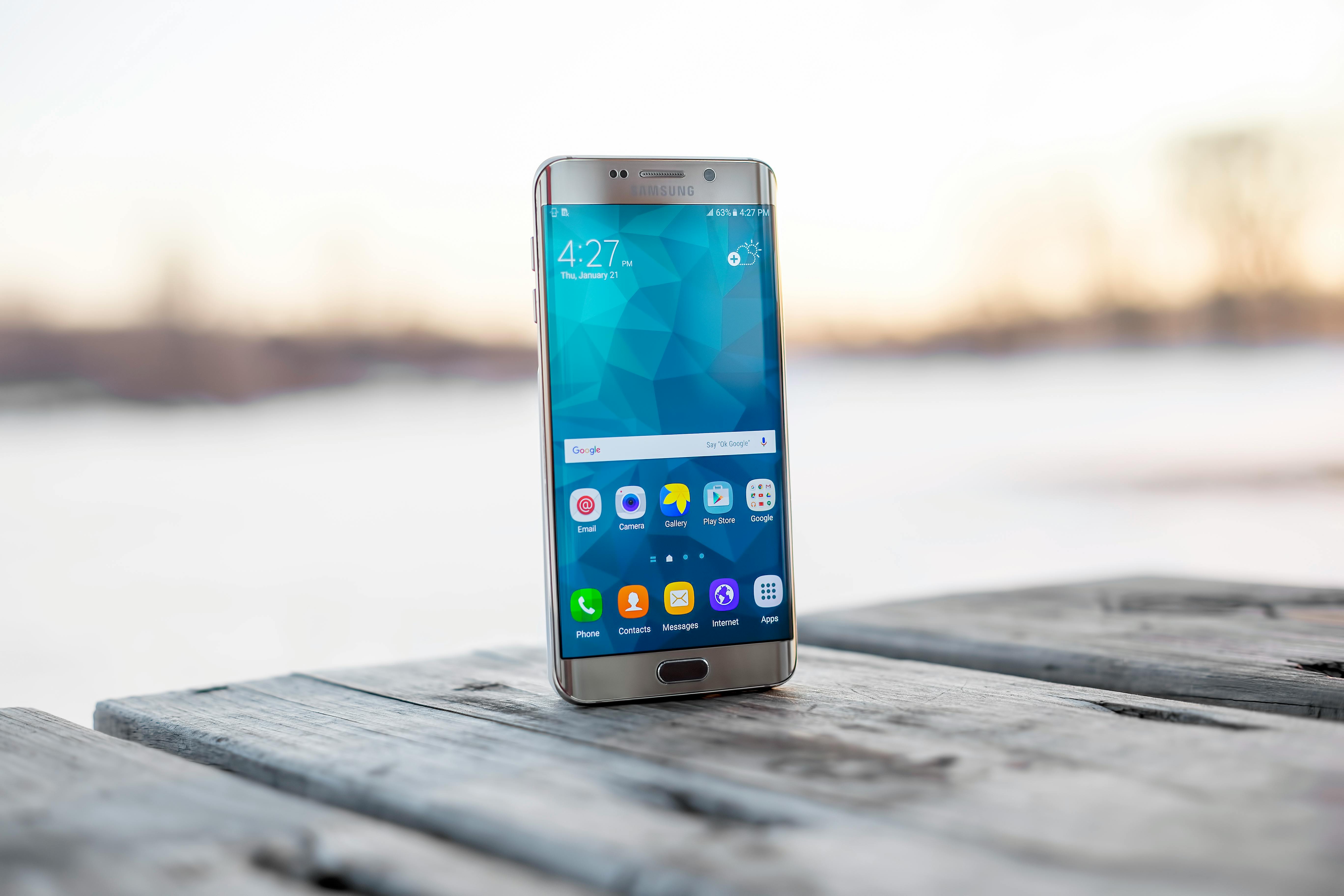
Samsung Galaxy
- Open Settings → Connections
- Tap Mobile Hotspot and Tethering
- Tap Mobile Hotspot → toggle ON
- Tap Configure to set your network name and password
- Connect other devices to the hotspot via Wi-Fi
Google Pixel
- Open Settings → Network & Internet
- Tap Hotspot & Tethering
- Tap Wi-Fi Hotspot → toggle ON
- Tap Set up Wi-Fi hotspot to configure name and password
Other Android Devices
- Settings → Network & Internet
- Hotspot & Tethering → Wi-Fi Hotspot
- Toggle ON and configure
How to Use Bluetooth or USB Tethering
If Wi-Fi hotspot isn't ideal (e.g., you want to save battery or have a more stable connection), try these alternatives:
Bluetooth Tethering
- Slower but uses less battery
- Good for basic browsing and messaging on a laptop
On iPhone: Settings → Personal Hotspot → toggle ON. Pair with your laptop via Bluetooth and enable "Internet Access." On Android: Settings → Hotspot & Tethering → Bluetooth Tethering → toggle ON.
USB Tethering
- Fastest and most stable option
- Also charges your phone while sharing data
On iPhone (Mac): Connect via USB → go to Settings → Personal Hotspot → USB only should appear. On Android: Connect via USB → Settings → Hotspot & Tethering → USB Tethering → toggle ON. On Windows, it may auto-install a driver.
Tips for Using Your eSIM as a Hotspot
Conserve Your Data
Hotspot sharing uses more data than using your phone alone. A laptop browsing the web or downloading files can consume data 3–5x faster than phone browsing.
- Limit background updates on connected devices
- Use data-saving mode in browsers
- Stream at lower quality (720p instead of 4K)
- Download content over Wi-Fi before going mobile
Monitor Your Usage
Keep an eye on your data consumption:
- iPhone: Settings → Cellular → scroll to see data usage per device
- Android: Settings → Connections → Data Usage → Mobile Hotspot data
If you're approaching your plan's limit, Roaming2 allows easy top-ups so you don't run out mid-workday.
Battery Life Considerations
Hotspot sharing drains your phone battery faster:
- Keep your phone plugged in during extended hotspot use
- Close unused apps
- Reduce screen brightness
- Consider using USB tethering — it charges your phone while sharing
Common Hotspot Issues and Fixes
Devices Can't Find My Hotspot
- Make sure Personal Hotspot/Mobile Hotspot is toggled ON
- Check that your eSIM has active data (toggle Data Roaming)
- Try restarting your phone
- Ensure the device is within 30 feet range
Hotspot Is Slow
- Check your signal strength — move closer to a window or higher ground
- Reduce the number of connected devices
- Check if you've hit your FUP threshold — speed may be reduced
- Try USB tethering for a more stable connection
eSIM Data Works on Phone but Not Hotspot
Some carriers restrict hotspot usage by checking the TTL (time-to-live) value of packets. If this happens:
- Contact Roaming2 support — all Roaming2 plans support hotspot sharing
- Try USB tethering as a workaround
- Ensure your phone is not in Low Data Mode
The Bottom Line
With Roaming2, your eSIM becomes a portable Wi-Fi hotspot for all your devices. Whether you're working from a coffee shop in Paris, navigating with your tablet in Tokyo, or sharing data with travel buddies in Bangkok — the freedom of one plan, multiple devices.
- ✅ All Roaming2 plans support hotspot sharing
- ✅ No extra fees for tethering
- ✅ Connect laptops, tablets, and other phones
- ✅ Top up anytime if you need more data
Get your Roaming2 eSIM with hotspot support →
One eSIM, all your devices connected. That's the power of hotspot sharing. 🚀